
Google Keyboard Settings :
You are losing out on significant productivity if you continue to use the outdated, default typing experience on your smartphone. Gboard, the actual name of Google Keyboard, has fundamentally changed how people use their mobile devices. This program is intended to make typing quicker, smarter, and much more flexible, whether you are writing a brief note or a lengthy business email. Everything on this Google keyboard is easily accessible. This Gboard is among the most widely used keyboards. This Google keyboard has many user-friendly choices.
Examining your settings is the first step whether you want to type more quickly, get rid of embarrassing errors, or just improve the appearance of your interface. This is your all-inclusive guide to Android 2026’s top Google Keyboard settings.
In 2026, why should you optimise your Google Keyboard settings?
To keep Gboard compatible with the most recent Android operating systems, Google regularly upgrades it. This year, privacy-first, on-device AI (such as the Gemini integration), improved generative themes, and hyper-personalised typing predictions have received a lot more attention. It has more personalised steps.
Spending five minutes fine-tuning your settings will:
1. Use Glide Typing and Smart Compose 2.0 to increase typing speed.
2. Improve Accuracy: Allow AI to identify your grammatical errors before you submit.
3. Enhance Aesthetics: Customise themes created by AI to fit your own aesthetic.
4. Safeguard Your Privacy: Manage the specific types of data that are handled locally vs remotely.
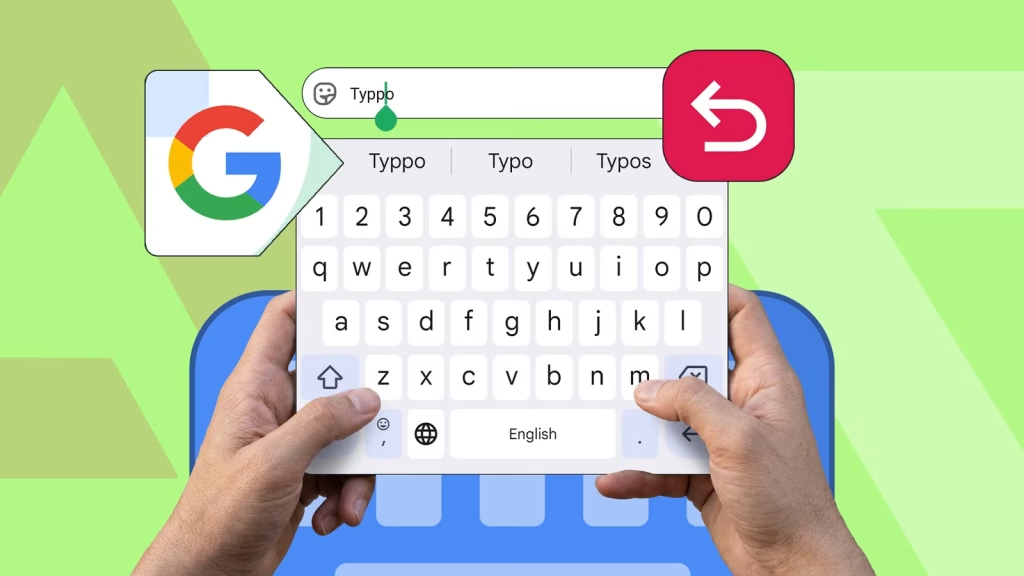
The Best Google Keyboard Configurations to Modify Now
To access your settings, launch any typing-capable application, activate the keyboard, hit the gear icon (Settings) located at the top of Gboard, and let’s get going.
1. Activate Smart Compose 2.0 and On-Device AI Writing:
Gboard’s cutting-edge AI writing assistance is one of 2026’s most notable features. Instead of merely suggesting the next word, it learns your tone and makes suggestions for whole phrases.To accomplish this, select Text Correction under Settings. Make sure Next-word recommendations and Show suggestion strip are turned on. After that, go to the Proofread or AI Assistant section and turn on on-device processing to guarantee that your drafts stay confidential while receiving the best grammatical fixes.
2. Adjust Keyboard Height and Layout:
A keyboard that is too big takes up screen space, while one that is too small causes errors.
Ergonomic typing requires customising your keyboard’s footprint.
To accomplish this, select Settings > Preferences > Keyboard height. Extra-short and extra-tall are the options.
Pro-Tip: Toggle on the Number row while in Preferences so that typing a number never requires you to transition to the symbol layout.
3. Activate and deactivate keypress sounds and haptic feedback:
Touchscreen typing may seem much more tactile thanks to haptic feedback, which is the pleasant tiny sensation you get when you tap a key. Some, meanwhile, find it distracting or wish to conserve battery life.
How to do it: Navigate to Preferences > Settings. To access the Key Press area, scroll below. Here, you may switch between haptic feedback and sound on keypress. Even the vibration strength may be changed to suit your preferences.
4. Learn Real-Time Translation and Multilingual Typing
Gboard’s 2026 real-time translation tools are revolutionary, whether you are multilingual or interact with clients from other countries. Without requiring you to explicitly switch layouts, the keyboard can now automatically forecast and correct many languages at once.
How to proceed: Navigate to Settings > Add keyboard > Languages. Choose the languages you want. To ensure that Gboard recognises words from all of your active languages, make sure multilingual typing is turned on.
5. Utilise AI Theme Builder and Emoji Kitchen
The degree of personalisation has increased. Basic light and dark settings are no longer an option.
How to do it: To accomplish this, navigate to Settings > Theme. With the 2026 Generative AI Theme Builder (available on more recent Android devices), you may select normal colours, dynamic colours that complement your Android wallpaper, or input a prompt like “neon cyberpunk city”, and Gboard will generate a unique theme for you.
Emojis: To combine several emojis to create unique reactions, go to Settings > Emojis, Stickers & GIFs and make sure Emoji Kitchen is activated.
Safeguard Your Keystrokes with Privacy and Security:
To be effective, a smart keyboard must learn your typing patterns, but you should always have control over your data. Keeping your data local has become simpler with Android in 2026.
Navigate to Settings > Privacy. You can control what Gboard shares with Google here. Make sure that settings like “Share usage statistics” are off and confirm that your AI features are configured to execute only on-device using your phone’s NPU (Neural Processing Unit) if you value complete privacy above cloud-synced dictionary functionality across devices.
One of the simplest ways to improve your everyday smartphone experience is to get proficient with Google Keyboard Settings on Android 2026. You may turn a simple tool into a highly personalised productivity engine by customising the layout, turning on AI features, and protecting your privacy settings. Your thumbs will appreciate it if you take a few minutes today to change these settings.

Hi I am mageshwari I want tailor machine help me sir
Free tailor machine today update