Vinayagar Chaturthi Photo Editing Every year during Vinayagar Chaturthi, our phone galleries fill up with festival photos. Most of them are quick snaps taken in front of the pandal, in bad lighting, with people walking in the background. They carry the memory, but they rarely look good enough to post.
This year you can fix that in a few minutes. With the right AI prompt, a single ordinary photo of yourself can be turned into a cinematic devotional portrait that looks like it was shot by a professional photographer. No camera, no studio, no editing software, and no design skills required.
This guide explains exactly how it works, what you need, and how to get the best result on your very first try.
Vinayagar Chaturthi Photo Editing What This Actually Does
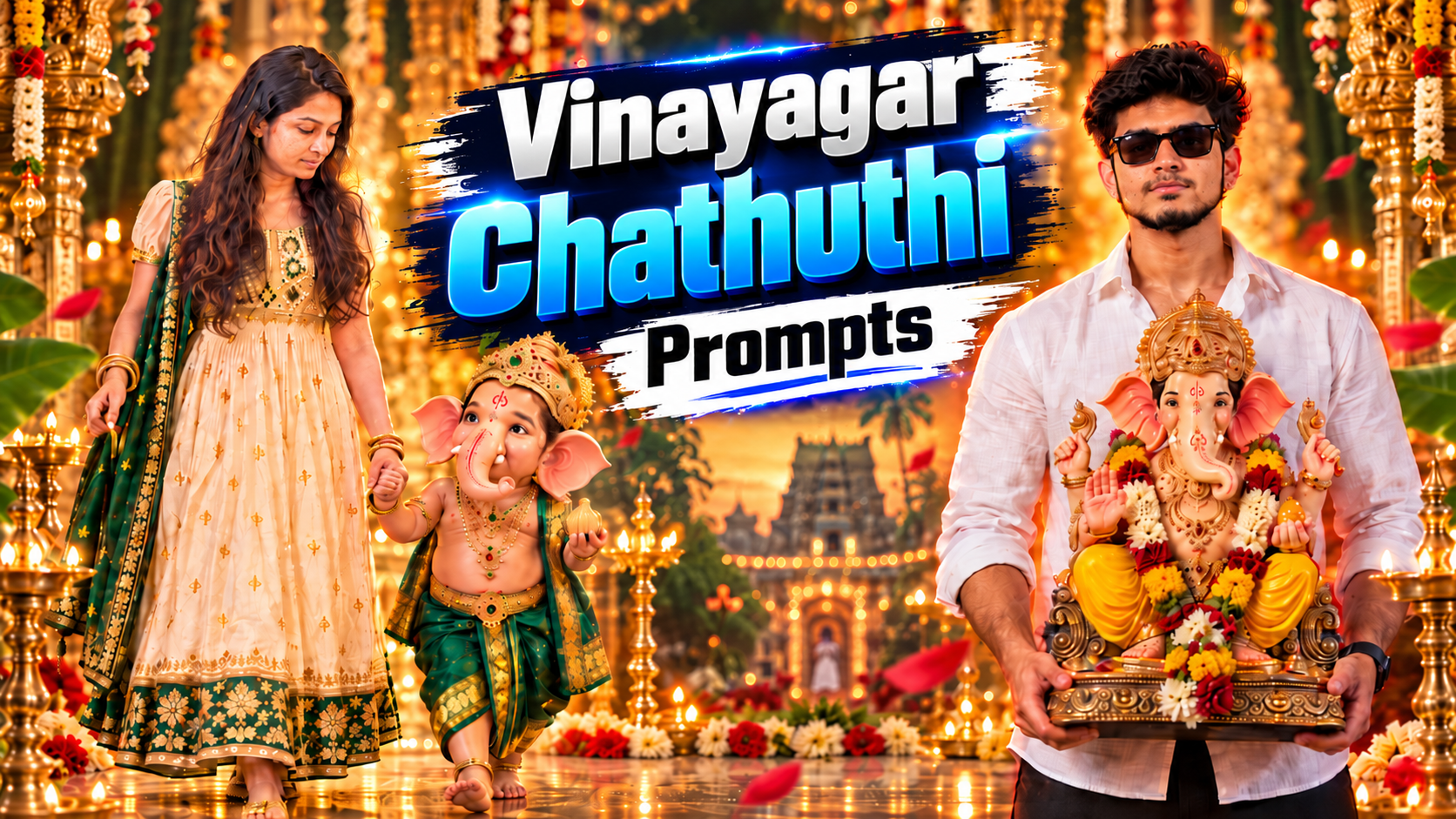
You upload one clear photo of yourself. The AI keeps your face exactly as it is and rebuilds everything around it: the outfit, the pose, the Ganesha idol, the pandal, the lighting, and the background.
The final image looks like a real photograph. Your friends will assume you visited a decorated mandapam and hired a photographer for the day.
Four popular styles are covered here:
- Standing in front of a grand golden Ganesha pandal
- A child walking hand in hand with baby Ganesha
- A devotional poster portrait holding a Ganesha idol
- Traditional silk outfit portraits with festival lighting
All four come from the same basic workflow.
What You Need Before You Start
You need three things, and all of them are easy to arrange.
A ChatGPT account. The free plan allows image generation with a daily limit. If you plan to create several versions, the paid plan gives you more room to experiment.
One good photo of yourself. This is the part most people get wrong, and it decides everything. Your photo should be clear, front facing, and taken in decent daylight. Your full face must be visible with nothing covering it. Avoid heavy filters, beauty mode, group photos, and blurry night shots. A simple selfie taken near a window works better than a dark photo taken at a function.
The prompt. This is the detailed instruction that tells the AI what to create. All four prompts are ready to copy from the link below.
[Download the free prompt file here]
Step by Step: How to Create Your Vinayagar Chaturthi Photo
Step 1. Open ChatGPT and start a new chat. A fresh chat avoids confusion from earlier conversations.
Step 2. Upload your photo using the attachment icon next to the message box. Upload only one photo.
Step 3. Copy the full prompt from the file and paste it into the same message, right below the uploaded photo. Do not shorten it. Every line in that prompt controls something specific, such as the lighting, the outfit, or the camera angle.
Step 4. Send the message and wait. Generation usually takes thirty seconds to a minute.
Step 5. Check the face carefully. If it looks like you, download it. If the face has changed even slightly, do not start over. Just reply in the same chat with this line:
Keep the face pixel-accurate to the uploaded photo. Do not stylise or change any facial feature.
The corrected version is usually much closer.
How to Make the Face Look Exactly Like You
This is the single biggest complaint people have with AI photo editing. The image looks beautiful, but the face belongs to someone else.
Here is why it happens and how to avoid it.
The AI can only work with what it can see. If your uploaded photo is small, dark, side angled, or heavily filtered, the AI fills in the missing details by guessing. That guess is what changes your face.
Use a photo where your face takes up a good portion of the frame. Natural light is better than any indoor bulb. Keep a neutral expression rather than an extreme one. Remove sunglasses and caps from the reference photo, even if the final image will have sunglasses, because the AI needs to see your eyes to understand your face properly.
If the first output is close but not perfect, keep correcting in the same chat instead of opening a new one. The AI remembers your uploaded photo for that conversation, so each correction gets better rather than starting from zero.
Changing the Style Without Breaking the Image
Once you get a result you like, you can adjust small things without ruining the overall look.
To change the shirt colour, edit only the colour word in the outfit section and leave everything else untouched. To remove sunglasses, delete that line and add a short instruction saying the eyes should be clearly visible. To change the mood of the background, replace the lighting colour while keeping the rest of the description exactly the same.
The rule is simple: change one thing at a time. When people rewrite half the prompt, the AI loses the structure and the result becomes unpredictable.
Common Mistakes to Avoid
Uploading multiple photos at once. The AI tries to combine them and the face becomes a mix of different people. One photo, always.
Writing a short prompt. A one line instruction like “make a Ganesh Chaturthi photo of me” will give you a generic result. The long prompt exists because every detail in it is doing a job.
Using a group photo. The AI may pick the wrong person or blend two faces together. Crop yourself out first, or use a solo photo.
Expecting perfection in one attempt. Even professional creators generate four or five versions and pick the best one. Treat the first output as a draft.
Ignoring the hands. AI sometimes struggles with fingers, especially when the person is holding an idol. Zoom in and check before posting. If the hands look wrong, ask for a regeneration with a note about realistic hands.
Getting the Best Quality for Instagram
Vertical images perform better on Instagram, WhatsApp status, and Facebook stories. All four prompts are already set to a vertical nine by sixteen ratio, so you do not need to crop anything afterwards.
Download the image at full resolution instead of taking a screenshot. Screenshots lose sharpness and the detail in the garlands, the gold work, and the lamps becomes muddy.
If you want to add Tamil text or a festival greeting on top, use a simple editing app afterwards. Adding text through the AI prompt usually produces broken or misspelled letters, so it is always safer to add it manually.
A Few Ideas Worth Trying
Create one portrait for yourself and one for each family member, then post them together as a carousel. The matching style makes the set look like a planned photoshoot.
Make a version for your children using the baby Ganesha prompts. Those tend to get the most reactions because they are genuinely charming.
Save your favourite prompt for next year. Festival prompts work just as well for Deepavali, Pongal, and Navaratri with only a few words changed.
Conclusion
AI photo editing has reached a point where a single clear selfie is enough to create something that genuinely looks professional. The technology is not the hard part anymore. The quality of your uploaded photo and the detail in your prompt decide almost everything.
Start with one good photo, use the full prompt without cutting it down, and correct the face in the same chat if needed. Within ten minutes you will have a Vinayagar Chaturthi portrait worth posting.
Grab the free prompt file below and try it today.
[Download the free prompt f