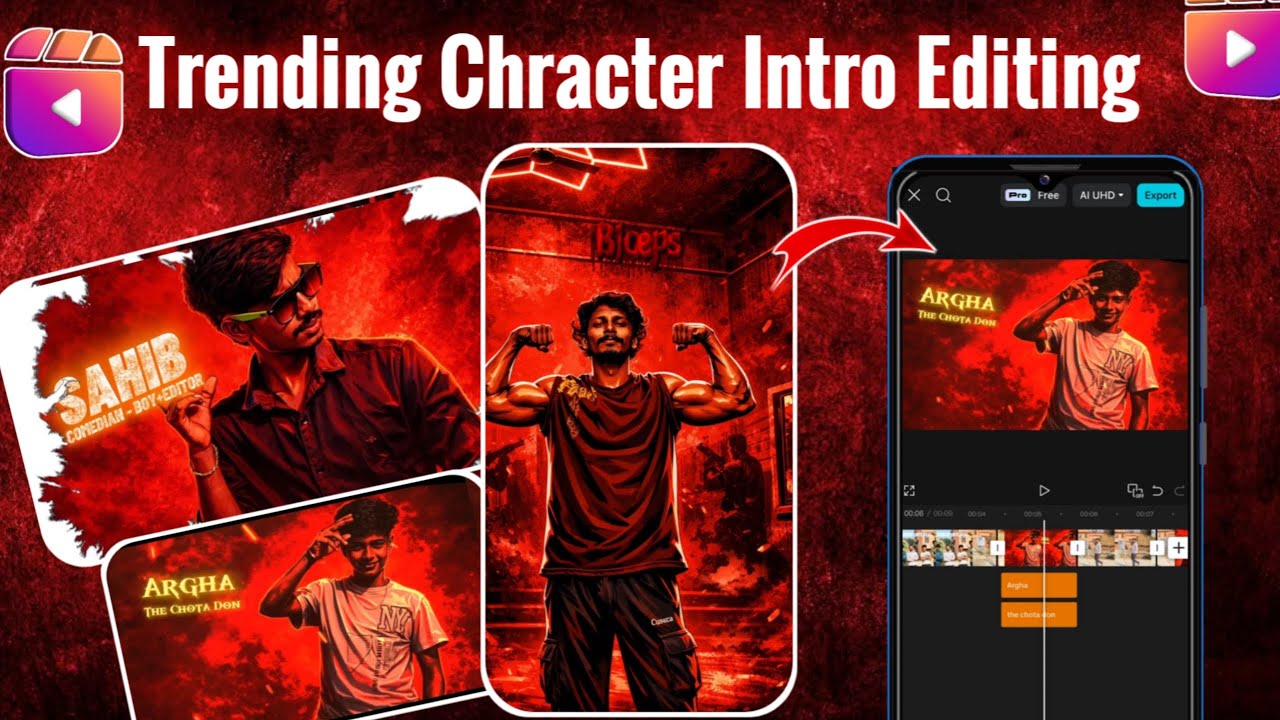
You must have seen videos where a character is introduced in a stylish way common in movies, web series, or short videos. The character appears on screen, the frame freezes, the background turns red, and text pops up showing the character’s name and details. This type of introduction instantly grabs attention.
That inspired me to write this article and explain how you can create the same effect in your own videos. I’ll keep things simple, because doing this edit manually can take a lot of time. I’ll cover both methods: the manual editing process and the easier automatic method using CapCut templates. By the end, you’ll understand how this character intro effect is created and how you can apply it yourself.
How to Create a Character Intro Using CapCut Template | ShortsTamil
Character Intro Capcut Template
In this process, you’ll see a few clips while the editing is being done, so pay close attention. Here’s how it works: first, a normal video plays, such as you walking or coming from somewhere. Then, the video freezes and your photo appears on the screen. Your name is displayed on the photo along with a stylish effect. This creates the character intro effect.
We’ll show you how to create this effect in two ways: manually and automatically. One method uses a ready-made CapCut template, and the other involves the complete editing process inside the CapCut app. I’ll explain both methods in a simple way. While the template method is the easiest, learning the manual editing process in CapCut will help you build strong editing skills.
How To Edit In Capcut
First, let’s look at the manual method and how to create this intro step by step. Start by adding a video in which the character is clearly visible. Keep the clip short, and choose any audio you like.
Once the video reaches the end, move to the final frame and apply the Freeze Frame effect. This will freeze the last part of the clip. After that, delete everything that comes after the frozen frame. The frozen frame will now act like a still image.
Cinematic Character Intro CapCut Template 🔥 | ShortsTamil
Next, select this frame and go to Filters. Apply a red filter choose the one that looks best on your image. Then, go to the Text option and add the character’s name. Pick a text color that stands out; yellow works especially well on a red background.
Finally, open Effects and apply the Check effect. Adjust its settings to 10–10 percent. Once everything looks good, export the video, and your character intro is ready.
How To Use Character Intro Capcut Template
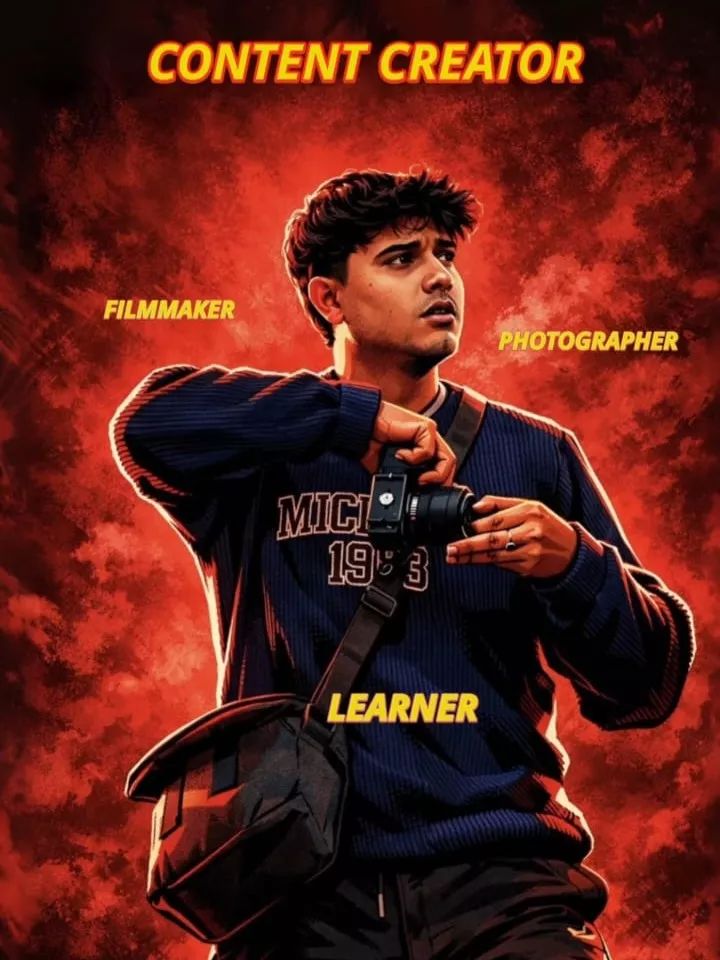
Prompt:
Create a cinematic digital illustration of the person in the reference photo. Maintain the exact face, identity, hairstyle, expression, skin tone, and pose with zero distortion.Transform the entire scene into a deep red high-contrast Tamil gangster movie poster style. Replace the background with red gradients, smoky atmosphere, and subtle textures. Add bold comic-book shading, thick outlines, strong blackshadows, and glossy highlights on the skin and clothes. Stylize the outfit with richer tones, clean folds, and dynamic lighting while keeping the original clothing design. Add intense highlights to the jawline, cheekbones, and edges of the body. Maintain the original pose and attitude. Create a gritty, powerful, cinematic mood with dramatic lighting and high contrast. Ultra-detailed, sharp lines, vibrant red atmosphere,action-movie poster energy, 4K illustration
Creating a video with this template is incredibly easy. The template is provided here. Below the image, you’ll find a “Check Template” button. Clicking on it will open the template directly in CapCut, where you’ll see a preview of the video. You’ll be able to see what kind of editing will be applied. Then, click on “Use Template.” After clicking, add your video clips. Then click “Next.” You’ll then see a final preview of your video, showing the completed editing. Once you’re satisfied with the editing, you can export it. The export settings should be 1080p at 30fps.

Conclusion
This is how you can create viral intro videos like this, and I’ve explained both methods to you. It’s not like you can only create it using one method. If one doesn’t work for you, try the other one and complete your editing. I’ve shared all the details with you and explained everything. Now let us know, and we’ll bring you even more new things.